How to Resize an Image Without Losing Quality
Introduction: How to Resize an Image
Digital images have become an essential part of our daily lives. Whether you are applying for a government job, uploading photographs to social media, sending documents through email, designing a website, or creating presentations, images often need to be resized to meet specific size requirements.
Many people assume that reducing an image’s dimensions automatically reduces its quality. Fortunately, that is not always true. When done correctly, image resizing can significantly reduce file size while preserving sharpness, colors, and visual clarity.
This guide explains how to resize an image, the factors that affect image quality, and the best practices for resizing images without noticeable quality loss.
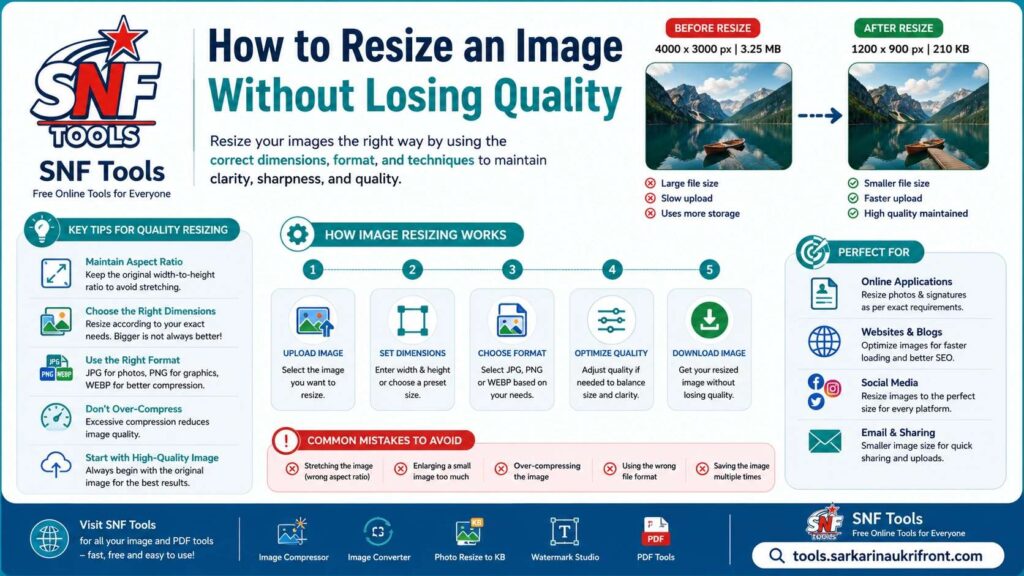
Table of Contents
What Does Image Resizing Mean?
Image resizing refers to changing the dimensions of an image by increasing or decreasing its width and height.
For example:
- Original Image: 4000 × 3000 pixels
- Resized Image: 1200 × 900 pixels
Although the image contains fewer pixels after resizing, it can still appear clear on computer screens and mobile devices if resized correctly.
Image resizing is different from image compression. Resizing changes the number of pixels, while compression reduces the amount of storage required for those pixels.
Why Do Images Need to Be Resized?
There are many situations where resizing an image becomes necessary.
Online Job Applications
Many government and private recruitment portals specify maximum dimensions or file sizes for photographs and signatures.
Social Media
Each social media platform recommends different image dimensions to ensure photos appear correctly.
Websites
Large images slow down web pages. Properly resized images improve loading speed and user experience.
Email Attachments
Smaller images upload faster and are easier to share through email and messaging applications.
Digital Documentation
Many online forms require photographs within specific size limits before submission.
Understanding Image Resolution
Resolution refers to the total number of pixels contained in an image.
For example:
| Resolution | Total Pixels |
| 640 × 480 | 307,200 |
| 1280 × 720 | 921,600 |
| 1920 × 1080 | 2,073,600 |
| 4000 × 3000 | 12,000,000 |
Higher resolutions contain more detail but also produce larger file sizes.
For everyday viewing on phones, laptops, and websites, extremely high resolutions are often unnecessary.
Does Resizing Reduce Image Quality?
Not necessarily.
Quality depends on several factors:
Correct Scaling
Reducing an image moderately usually produces little or no visible quality loss.
Image Format
Different image formats preserve quality differently.
For example:
- PNG preserves maximum quality.
- JPG provides excellent quality with smaller file sizes.
- WEBP offers high quality with efficient compression.
Resizing Method
Modern image processing algorithms preserve edges, colors, and details much better than older resizing techniques.
Best Practices for Resizing Images: How to Resize an Image
Start with the Original Image
Always resize the highest-quality version available.
Repeatedly resizing an already resized image can gradually reduce quality.
Maintain the Aspect Ratio
Aspect ratio is the relationship between image width and height.
For example:
1920 × 1080
has a 16:9 aspect ratio.
Changing only the width or only the height can stretch the image and distort faces, objects, and text.
Always resize proportionally unless a specific crop is required.
Choose the Correct File Format
Different formats serve different purposes.
JPG
Best for:
- Photographs
- Social media
- General sharing
Advantages:
- Small file size
- Excellent compatibility
PNG
Best for:
- Logos
- Graphics
- Transparent backgrounds
Advantages:
- Lossless quality
- Sharp text
WEBP
Best for:
- Modern websites
- Fast page loading
Advantages:
- Smaller files
- High image quality
Difference Between Resizing and Compression
Many users confuse these two processes.
Image resizing changes:
- Width
- Height
- Number of pixels
Image compression changes:
- Storage efficiency
An image can be:
- resized only,
- compressed only,
- or both are resized and compressed together.
Using both methods appropriately often produces the best balance between quality and file size.
Popular tools used for image processing are
Common Mistakes
Avoid these mistakes:
Enlarging Small Images
Increasing dimensions cannot create new detail.
A small image enlarged to a large size often appears blurry.
Excessive Compression
Very aggressive compression introduces the following:
- Blurry edges
- Visible artifacts
- Loss of colour detail
Incorrect Aspect Ratio
Stretching images horizontally or vertically makes photographs appear unnatural.
Saving Multiple Times
Repeated editing and saving in JPG format may gradually reduce image quality.
Common Mistakes in Government Exam Applications
Tips for Different Uses
Government Applications
Follow the exact dimensions and file size specified in the application instructions.
Social Media
Resize according to each platform’s recommended dimensions.
Websites
Use optimized images that balance quality with loading speed.
Printing
Maintain higher resolutions for printed photographs and documents.
Benefits of Proper Image Resizing
Correct image resizing provides many advantages.
- Faster uploads
- Faster downloads
- Reduced storage usage
- Better website performance
- Improved mobile browsing
- Easier document submission
- Better search engine performance
Conclusion: How to Resize an Image
Resizing an image does not have to mean sacrificing quality. By understanding image dimensions, maintaining the correct aspect ratio, selecting an appropriate file format, and using modern resizing techniques, you can create images that are both visually appealing and optimized for their intended use.
Whether you are preparing photographs for online applications, improving website performance, sharing images through email, or posting on social media, proper image resizing helps ensure that your images remain sharp, professional, and easy to upload.
Using reliable browser-based image resizing tools allows you to adjust image dimensions quickly without installing additional software, making the process convenient for users on any device.
FAQs: How to Resize an Image Without Losing Quality
Does resizing always reduce quality?
No. Proper resizing using modern algorithms can preserve excellent visual quality.
Which image format is best for photographs?
JPG is generally the best choice for photographs because it provides a good balance between quality and file size.
Can I enlarge a small image without losing quality?
No. Enlarging cannot recreate details that were not present in the original image.
What is the difference between resizing and cropping?
Resizing changes image dimensions.
Cropping removes unwanted portions of the image.
Should I resize before compressing?
Yes. Resizing first often produces better compression results.
Is PNG better than JPG?
PNG preserves more detail, while JPG creates much smaller file sizes.
The better choice depends on the purpose of the image.